
Get started
From invitation code to your first approval
About ten minutes, on your phone or your computer. Prefer to watch? See the how-to video.
From DynaGuard. One code creates one organisation. Your team joins by invitation, without codes.
iPhone or Android with face, fingerprint or a device PIN (personal identification number).
Claude, ChatGPT, Copilot, Gemini or your own agents.
Where to find things
The Companion has six tabs in the bottom bar.
| Tab | What you find there |
|---|---|
| Home | Requests waiting for you, your agents and their rules, + Chat app, + Agent key, and Stop my agents |
| Organisation | Paying accounts, approved suppliers, invoices, approved email recipients, People (invite approvers and members), limits and data export |
| Orders | Signed payment orders with the bank file, PDF and proof |
| Protect | Protect my details, Protect my text, your own key, your tools and sealed instructions |
| Activity | Everything every agent did, with signed proofs |
| Me | Where you approve, second device, connecting apps and agents, the desktop side panel, sign out |
Step by step
Best for approving: your face or fingerprint, notifications, and approvals limited to your phone.
Open the Companion on your phone
The Companion is a web app: there is nothing to download from an app store.
- On your phone, open
companion.dynaguard.aiin Safari (iPhone) or Chrome (Android). - iPhone: tap Share → Add to Home Screen. Android: tap ⋮ → Add to Home screen.
- From now on, always open the Companion from its new icon.
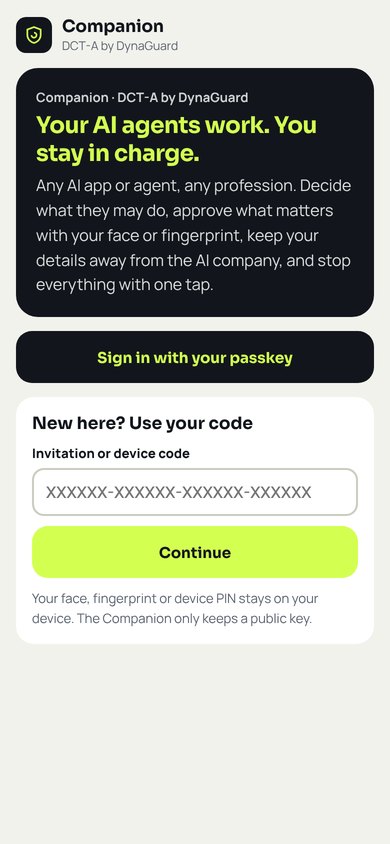
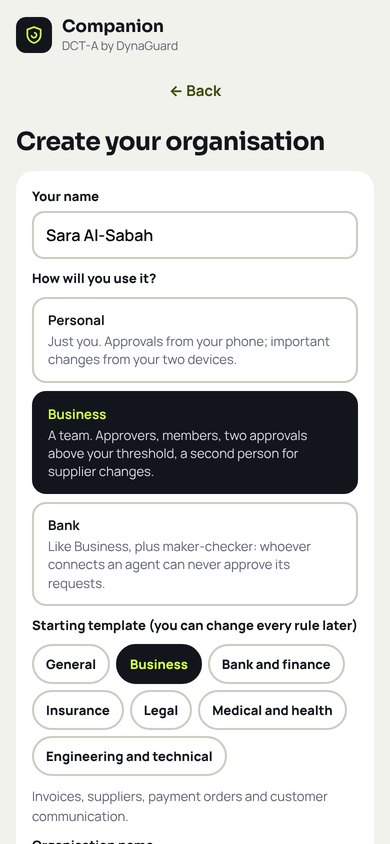
Create your organisation
- Enter your invitation code and tap Continue.
- Enter your name and choose Personal, Business or Bank, then a starting template for your sector.
- Enter the organisation's name, country, currency and time zone. The currency cannot be changed later.
- Tap Create my passkey and confirm with your face or fingerprint.
You are now the owner. Nobody else needs an invitation code: you invite your team from inside the Companion.
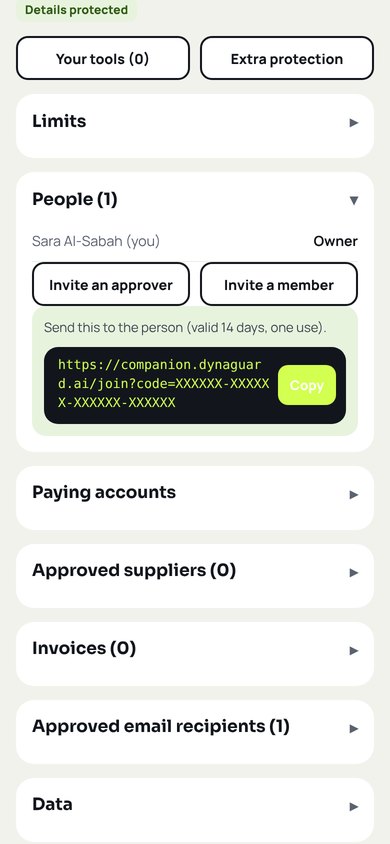
Invite your team
Organisation → People- Tap Organisation in the bottom bar, then open People.
- Tap Invite an approver (can approve requests) or Invite a member (can follow and use agents), and confirm with your face.
- Tap Copy and send the link by WhatsApp or email.
- The person opens the link on their own phone, enters their name and creates their own passkey.
Each link works once and for 14 days. In Business and Bank mode, a second person is needed to confirm new suppliers, so invite at least one approver.
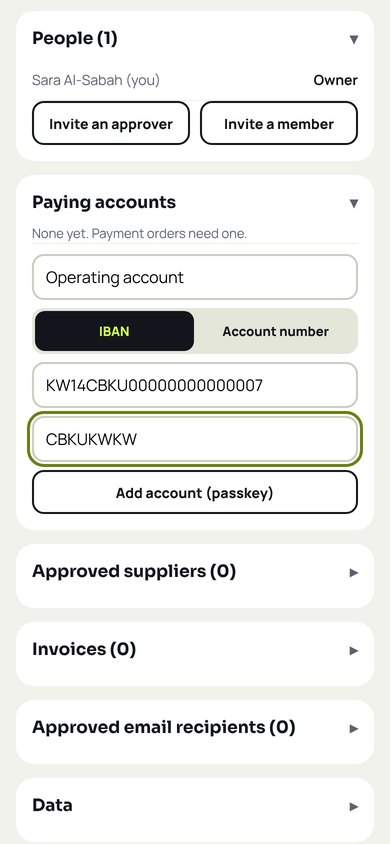
Add accounts and suppliers
Organisation → Paying accounts · Approved suppliers- Under Paying accounts, add the account you pay from and tap Add account (passkey).
- Under Approved suppliers, enter the supplier and their bank account, then tap Request.
- In Business and Bank mode, a different approver confirms the new supplier from their own phone.
- Optionally add Invoices and Approved email recipients.
Agents can never add or change bank details. Only people can, and always with a second person.
Choose where you approve
Me → Where you approve- Tap Me in the bottom bar.
- Under Where you approve, choose Approve only on this device on your phone.
- Tap Notify me… so requests reach you as notifications.
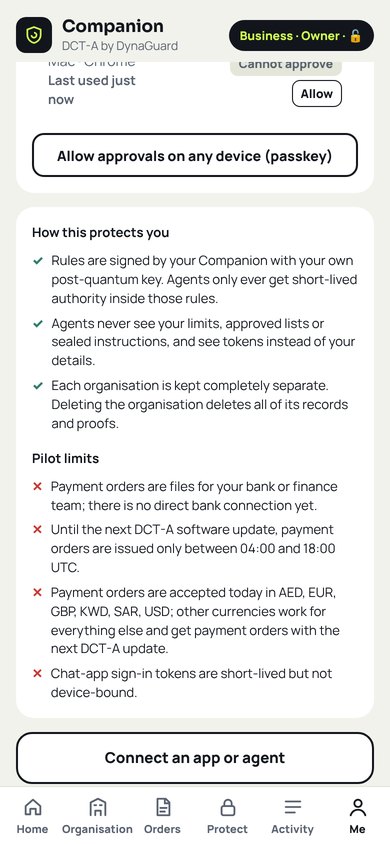
With this on, a computer can watch but never approve, even if your passkey is synced to it.
Connect your AI
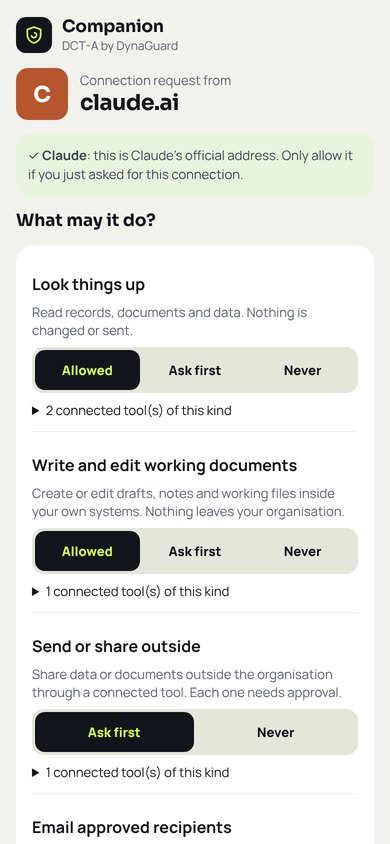
Connector address: https://connect.dynaguard.ai/mcp- Claude: open Settings → Connectors → Add custom connector, name it DCT-A, paste the address, then Add and Connect.
- ChatGPT, Copilot, Gemini and others: add a custom connector (remote MCP server with sign-in) with the same address, where your plan allows it.
- The Companion opens. Choose what this agent may do and tap Allow with passkey.
- Your own agents: on Home tap + Agent key and give the key to your developer.
Ask, then approve
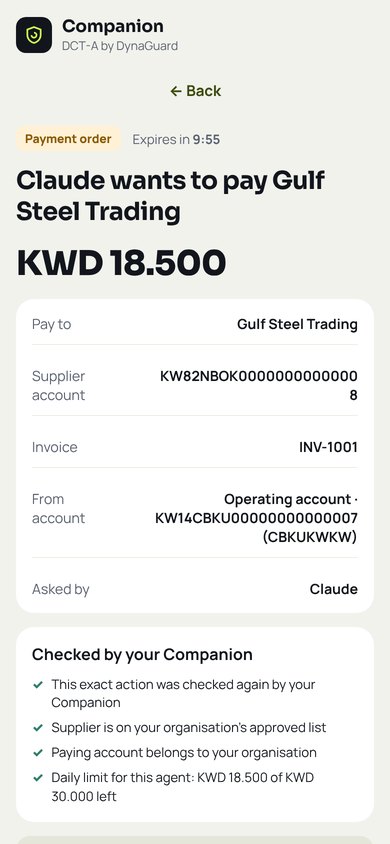
- Ask your AI in plain words, for example “Pay this week's supplier invoices.”
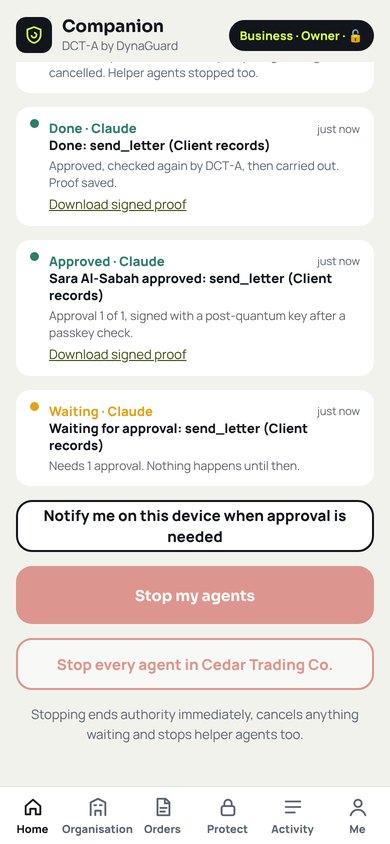
- Look-ups happen at once. Anything important appears on your phone under Needs you.
- Check the exact details, then tap Approve with passkey or Decline.
An approved payment becomes a signed payment order in Orders for your bank or finance team. The Companion never moves money itself.
Watch from your computer
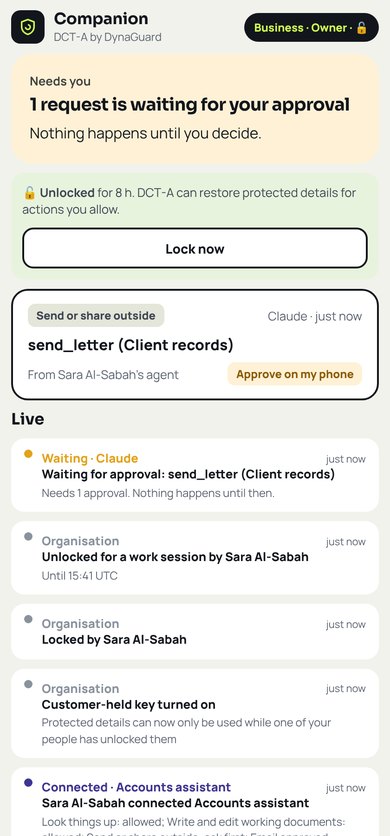
companion.dynaguard.ai/panel- On your computer, open the side panel next to your AI chat.
- Sign in with your passkey. You see waiting requests and everything your agents do, live.
Stop everything, any time
Home → Stop my agents- One tap ends every agent's authority at once and cancels anything still waiting. An action already being carried out finishes and is recorded in Activity.
- Owners can also stop every agent in the organisation.
Best for setting up and watching: a full keyboard, the side panel beside your AI chat, and your AI apps.
Open the Companion on your computer
- Open
companion.dynaguard.aiin Chrome, Edge or Safari on your Mac or Windows computer. - Keep it handy: Chrome or Edge: menu ⋮ → Cast, save and share → Install page as app. Safari on Mac: File → Add to Dock. Or simply bookmark it.
Sign in or create your organisation
Choose the way that fits you:
- New organisation: enter your invitation code and create your passkey with Touch ID, Windows Hello or your computer's PIN. You can add your phone later.
- Already set up on your phone: on the phone, open Me → Second device → Add a second device, send yourself the link and open it on the computer to create a passkey there.
- Or use your phone's passkey: tap Sign in with your passkey, choose use a phone or tablet, and scan the code with your phone.
For the strongest protection, set up the organisation on your phone and choose Approve only on this device there. The computer then watches and prepares, and the phone approves.
Set up your organisation with a full keyboard
Organisation- Paying accounts and Approved suppliers with their bank details. A second person confirms new suppliers in Business and Bank mode.
- People: Invite an approver or Invite a member, copy the link and email it. Each person opens it on their own phone or computer.
- Invoices, Approved email recipients and Limits.
Longer tasks, such as adding many suppliers or reviewing your own tools in Protect → Your tools, are easier on a computer.
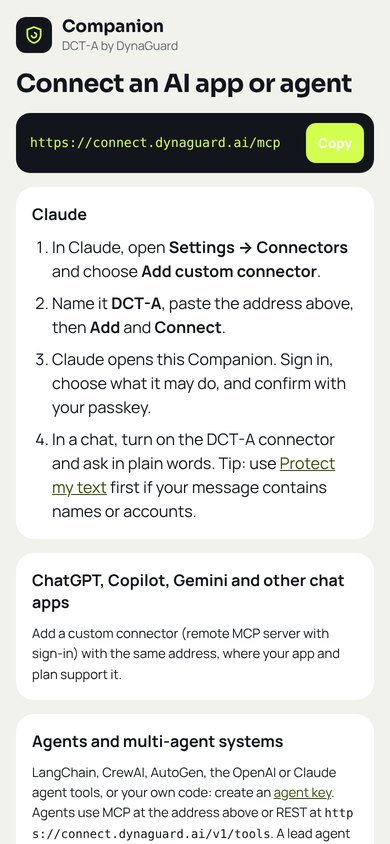
Connect your AI
Connector address: https://connect.dynaguard.ai/mcp- Claude (desktop app or claude.ai): Settings → Connectors → Add custom connector, name it DCT-A, paste the address, then Add and Connect.
- ChatGPT, Copilot, Gemini and others: add a custom connector (remote MCP server with sign-in) with the same address, where your plan allows it.
- The Companion opens. Choose what the agent may do and tap Allow with passkey. If approvals are limited to your phone, confirm there.
- Your own agents: on Home click + Agent key and give the key to your developer. Details are under Me → Connect an app or agent.
Open the side panel beside your AI chat
companion.dynaguard.ai/panel- Open the side panel in its own narrow window.
- Mac: place your AI chat on the left and the panel on the right; hold the green button at the top left of a window to tile it. Windows: press Windows key + ← on the chat and Windows key + → on the panel.
- The panel shows waiting requests and a live list of everything your agents do, and refreshes by itself.
Ask, then approve
- Ask your AI in plain words, for example “Pay this week's supplier invoices.”
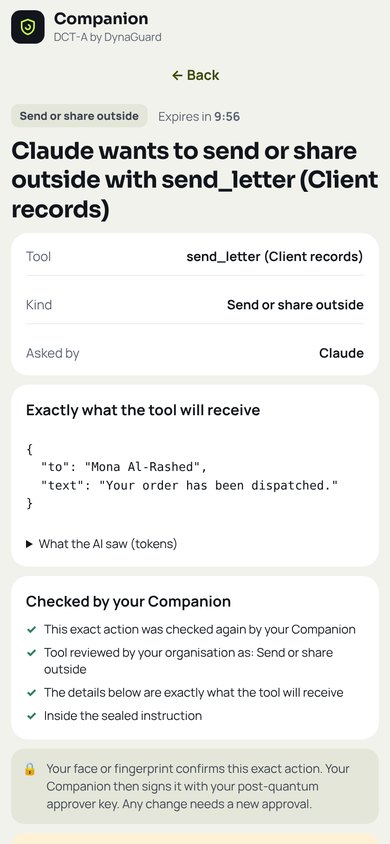
- Look-ups happen at once. Anything important appears in the panel.
- Approve only on your phone is on: the computer shows Approve on my phone and your phone receives a notification. Approve there.
- Otherwise click the request and approve with Touch ID, Windows Hello or your PIN.
Stop everything, any time
Panel or Home → Stop my agents- One click ends every agent's authority at once and cancels anything still waiting, from the computer or the phone. An action already being carried out finishes and is recorded in Activity.
Need a code or help?
Pilot organisations get an invitation code, the full user manual and direct support from our team.